



 Upwork
 Fiverr
 People Per
Hour
People Per
Hour
How to Add Navigation on Online Store in Shopify
 By Sachin Sharma
|
01-Dec-2025
By Sachin Sharma
|
01-Dec-2025
When you visit an online store, the first thing you usually look for is the menu at the top, buttons like Shop, About, or Contact. This is called navigation, and it plays a huge role in helping customers move around the website.
Good navigation can make a visitor stay longer, browse more pages, and shop confidently. In fact, recent UX studies show that websites with clean, simple navigation can increase conversions by up to 45% and lower bounce rates by almost 30%.
The good news is that if you’re using Shopify, adding navigation is very easy. Even beginners can set it up within minutes. And if you ever need help, a Shopify Developer or Shopify Consultant can guide you, but honestly, once you know the basics, you can handle it yourself.
In this blog, you’ll learn what navigation means, why it matters, how Shopify’s navigation system works, and how to build a perfect menu for your online store.
What Is Navigation in Shopify & Why It Matters
Navigation is the roadmap of your website. It helps customers find what they are looking for without getting confused. In Shopify, navigation includes two main parts:
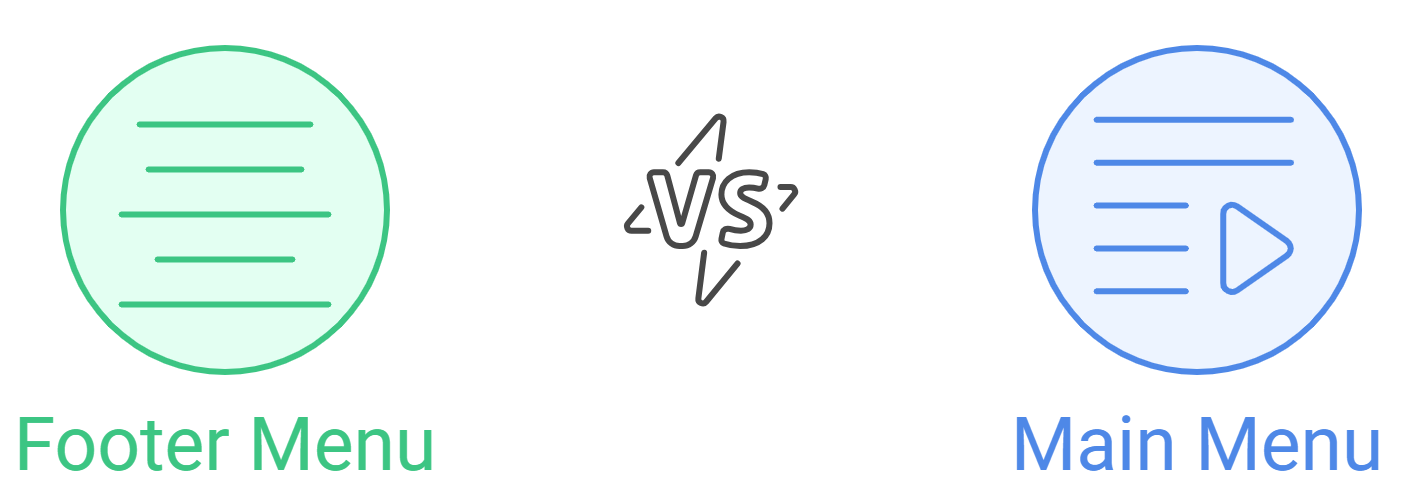
- Main Menu (usually at the top of the site)
- Footer Menu (at the bottom of the site)
Both play different roles.
The Main Menu helps shoppers quickly reach important pages like products, categories, blogs, and collections.
The Footer Menu usually contains secondary links like Terms, Privacy Policy, Contact Page, or FAQs.
A clean navigation system makes a big difference. Research shows that stores with strong and organized menus get up to 30% more page engagement, and 68% of shoppers leave instantly if they cannot find a product quickly. That’s a huge number, and it proves why stores should keep their menus simple.
Shopify gives you different types of menus, from basic menus to dropdown menus and even mega menus, depending on your theme. If you feel confused, a Shopify Specialist can help you choose the right structure, but most store owners manage it easily with Shopify’s built-in tools.
How Shopify Navigation Works
Shopify keeps things simple by giving every online store two default menus:
- Main Menu
- Footer Menu
You can manage both from one place:
Online Store → Navigation
One thing to keep in mind your Shopify theme decides how these menus appear visually. For example, some themes show dropdowns, some support mega menus, and some keep things minimal. If you want advanced layouts, you may need theme customization or help from a Shopify Developer.
Inside this section, you can:
- Create new menus
- Add menu items
- Link items to products, collections, blogs, pages, or external URLs
- Rearrange items with drag-and-drop
- Create dropdown menus by nesting items
Step-by-Step Guide to Add Navigation in Shopify
Adding navigation in Shopify takes only a few minutes. Many store owners are surprised at how easy the setup is. You don’t need any coding knowledge, and Shopify’s clean interface guides you through each step.
Here’s a beginner-friendly step-by-step guide:
- Log in to your Shopify dashboard.
- In the left menu, click Online Store.
- Select Navigation.
- Click Add Menu.
- Give your menu a title. Examples:
- Shop
- New Arrivals
- Collections
- About Us
- Customer Support
- Click Add Menu Item.
- Type the name you want to display in the menu.
- Choose where it links product, collection, page, blog, or a custom URL.
- Add as many items as you want.
- Drag and drop items to change their order.
- Nest items under each other to create dropdown menus.
- Click Save.
- Preview the menu in your theme to make sure everything looks right.
That’s it! Your navigation is ready.
Best Navigation Structure for a Shopify Store
Want your navigation to be user-friendly? Here are some simple rules:
- Keep your main menu limited to 3-4 main categories
- Use dropdowns only when needed
- Keep menu names short and simple
- Make sure customers can reach important pages within 2 clicks
Examples of good navigation:
Shorter menus also help websites load 5–10% faster, leading to better customer experience.
Shop
→ Men
→ Women
→ Kids
Collections
→ New Arrivals
→ Sale
→ Trending
Mega Menu vs Simple Menu (Comparison Table)
A simple menu works for most stores. But if you have dozens of categories, a mega menu can help customers navigate faster. Just make sure your theme supports it.
| Feature | Simple Menu | Mega Menu |
|---|---|---|
| Best for | Small stores | Large stores with many categories |
| Load speed | Very fast | Slightly slower |
| Difficulty level | Very easy | Medium / Advanced |
| Mobile friendly | High | Depends on the theme |
| Example | Home, Shop, About | Shop → Men, Women, Accessories, Sale |
How to Add Dropdown Menus
Dropdown menus help you organize categories under one main menu item. For example, under Shop, you can add Men, Women, and Accessories.
Here’s how to do it:
- Add the main item (e.g., Shop).
- Add sub-items (e.g., Men, Women, Kids).
- Drag sub-items slightly to the right under the main item.
- Shopify will automatically create a dropdown.
This method is often called the drag-and-indent trick.
But avoid adding too many layers. Customers get confused if they need to open multiple dropdowns. Keep labels short and easy, like “Men”, “Women”, “Sale”, or “New Arrivals”.
Navigation Tips to Improve Sales
A well-designed menu helps customers find products faster, which leads to more sales and better user satisfaction.
Want your navigation to boost your sales? Try these tips:
- Put your top-selling categories in the main menu
- Keep the menu under 7 items
- Include helpful links like Contact, Track Order, and FAQs
- Keep your mobile navigation clean since 70% of shoppers browse on mobile
- Add a Shop All link for fast browsing
- Use analytics to see which menu items customers click the most
- Update your menu during sales events to highlight discounts
Troubleshooting Common Navigation Issues
If the problem continues, you may need help from a Shopify Consultant who can check the theme code or settings.
If something looks wrong with your navigation, here are quick fixes:
- Menu not showing?
Check your theme’s header settings. - Link going to the wrong page?
Open Navigation and edit the link. - Dropdown not working?
Your theme may have a script conflict. - Bad spacing?
Adjust header padding from theme settings.
Summing Up
A clean, simple navigation structure helps customers shop faster and feel more comfortable on your website. Shopify makes it very easy to create menus, dropdowns, and custom navigation, even if you’re a beginner.
By following the steps and tips in this blog, you can set up a smooth shopping experience in just a few minutes. And if you ever want advanced customization, a Shopify Developer or Shopify Specialist can help you take your store’s navigation to the next level.
Good navigation improves user experience, increases sales, and builds trust. So take a few minutes to set it up right, it’s worth it.
With a Bachelor’s in Commerce and 15 years of experience in Ecommerce SEO and Shopify Development, I bring extensive expertise to the digital field. As Managing Partner at WillShall Consulting, I lead a team delivering exceptional Digital Marketing, Web Development, and Web Designing services. My passion for innovation and commitment to excellence help businesses thrive in the digital age.
FAQs: Add Navigation in Online Store

Looking to boost your online presence and reach more customers in your local area?
Explore Local SEO ServiceKnow your website’s SEO Score.
Get a customize SEO Audit report & improve your website statistics.

 Call Us
 +91 97797
76116 (Sales)
+91 97797
76116 (Sales) Email Us
 Video Call

 Our Locations
